

Allow $0 orders
By default, guests can’t check out with a total of 0 orders** if you want to let them, for example when a reward or discount covers the full order.1
Open your menu settings
In Remy, go to the Menu tab and open Square Integration.
2
Turn on $0 orders
Turn on Allow $0 orders.
Service charges
A service charge adds a percentage-based fee to every order on a Kiosk. Use it to offset kiosk service fees. You turn it on per profile in Remy, so you can charge it on some Kiosks and not others.1
Turn on Service Charge
In Remy, open the Kiosk profile, scroll down to Other Checkout Settings, and enable Service Charge.
2
Set the amount and label
Tap Customizations to set the charge percentage and the label guests see. The row shows your current settings — for example, 1.5% · “Service fee”.
3
Save
Save the profile. Every Kiosk assigned to it starts charging the fee.
What guests see
The charge appears as its own line in the Order Summary, between Subtotal and Tax, using the label you chose. It is included in the Total the guest pays.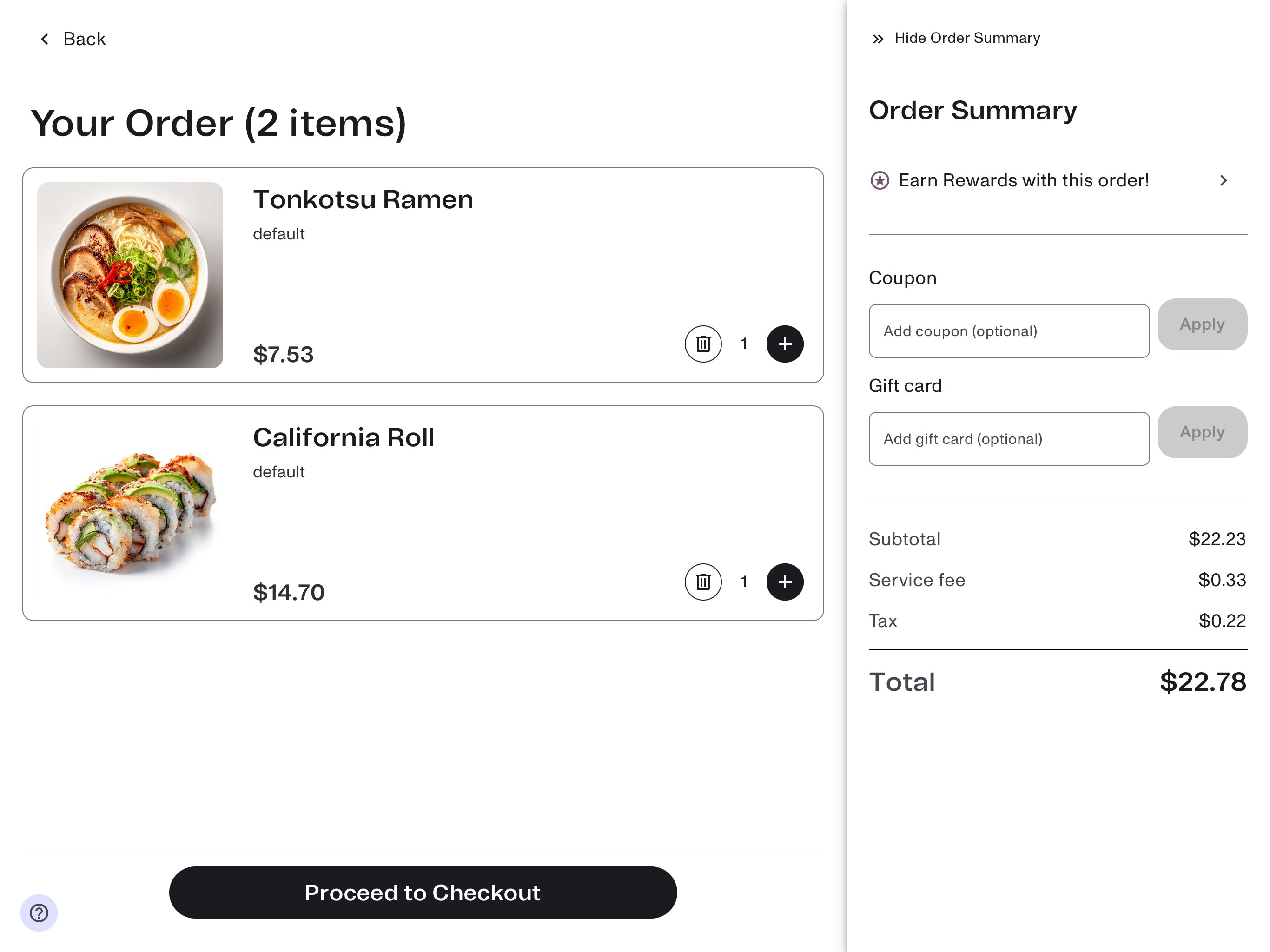
Fast-Lane: check out at $0
Fast-Lane is a setting you turn on in Remy that makes every order on that Kiosk check out at $0.00. It is a device-level toggle, not a per-order action — there is no coupon to type in and nothing for your staff to do at the Kiosk while it is on. With Fast-Lane on, the Kiosk works exactly as it normally does. A guest browses the menu, builds an order, and checks out through the usual flow. The only difference is the total. What stays the same:- Orders still reach the kitchen. They print and route as usual, including to a KDS if you use one.
- Order data is still recorded, item by item. You can still see how much of each item was ordered, so a Fast-Lane service reports the same way any other service does.
Kiosk Operations
Manage profiles, the welcome screen, and device locking.
Menu Management
Keep your menu in sync with Square.